Tutorial 2: Running pyWaPOR for test case
| Site: | IHE DELFT OPENCOURSEWARE |
| Course: | PyWaPOR OpenCourseWare |
| Book: | Tutorial 2: Running pyWaPOR for test case |
| Printed by: | Guest user |
| Date: | Friday, 26 December 2025, 6:55 PM |
Description
The instructions provided here will assist you in setting up pyWaPOR for a test case (to ensure the environment and notebook are properly set up) and to run the test case and investigate the output file.
1. Create user accounts
To access some of the input data you need to create user accounts. In the class, you will learn more about these data sources. This tutorial shows the steps to run pyWaPOR for a test case.
Before starting to run pyWaPOR, create user accounts on these websites:
- NASA Earthdata portal for downloading MODIS, SRTM, CHIRPS, MERRA2, and VIIRS data: https://urs.earthdata.nasa.gov
- After creating an account, you will need to authorize applications so that python scripts can use your account to collect data.
- On the portal, go to Applications > Authorized Apps
- Click
- Add 'NASA GESDISC DATA ARCHIVE' and 'LP DAAC OPeNDAP' to the list
- Copernicus portal for downloading Sentinel data: https://dataspace.copernicus.eu/
- Climate Data Store (CDS) portal for downloading ERA5 and AgERA5 data: https://cds.climate.copernicus.eu
- After logging in, go to your user account page
- Under API Key, copy and save the information for UID and API Key
- USGS Earthexplorer portal for downloading Landsat data: https://earthexplorer.usgs.gov
- TerraScope portal for downloading PROBA-V data: https://viewer.terrascope.be

2. Create a new Jupyter notebook to run pyWaPOR
After creating an python environment with pywapor and jupyterlab following the step in Tutorial 1: Installing Jupyter Notebook, you are now able to open JupyterLab on your PC. From now, when you want to open JupyterLab, you will need to:
- Open Miniforge Prompt and run this command line
mamba activate pywapor_env
- Then run the command below to start JupyterLab
jupyter lab
Once the JupyterLab interface is opened in your web browser, Click on the "Python" tile under "Notebook" in "Launcher" tab to create a new notebook.
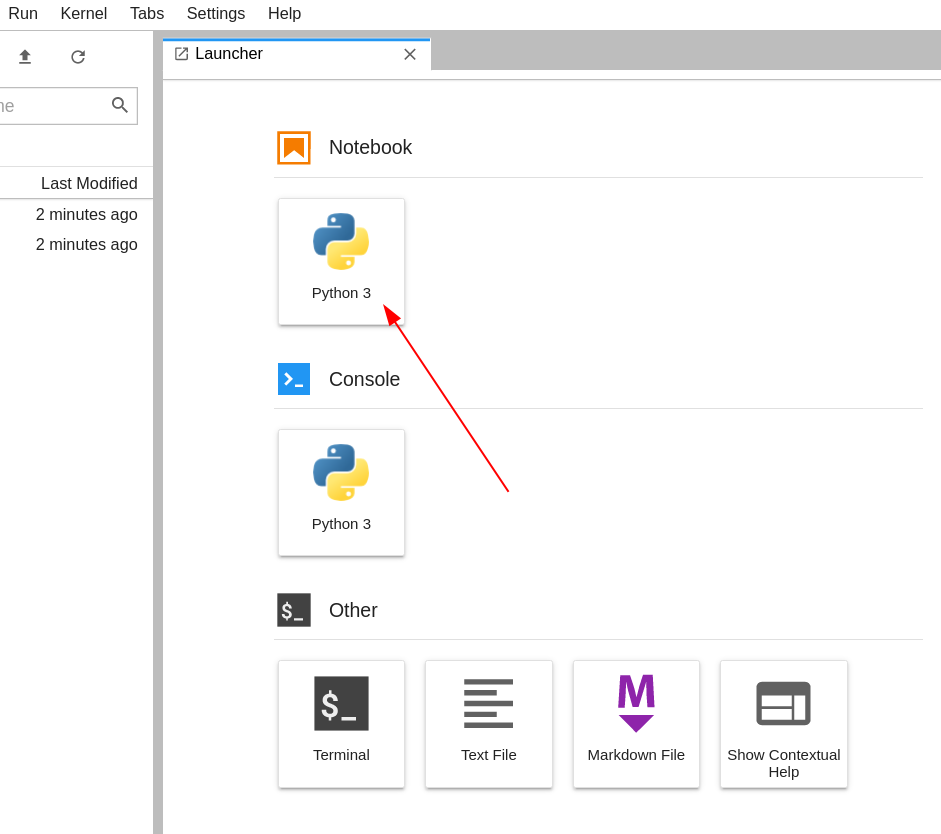
(© Copyright CodeRefinery team)
You will see a new notebook named "Untitled.ipynb". To change the name of the notebook, right-click on the tab and select "Rename Notebook..."
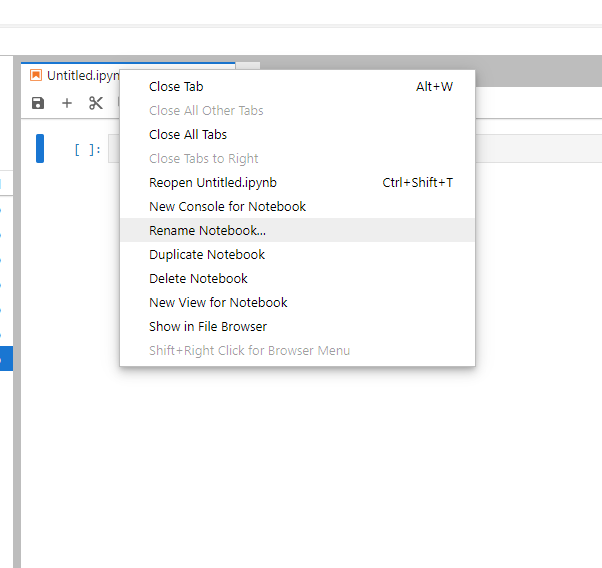
Enter the name of this new notebook (e.g., "Test pywapor.ipynb") and click "Rename".
Let's first have a look at the components in JupyterLab interface. See below for the explanation of its components.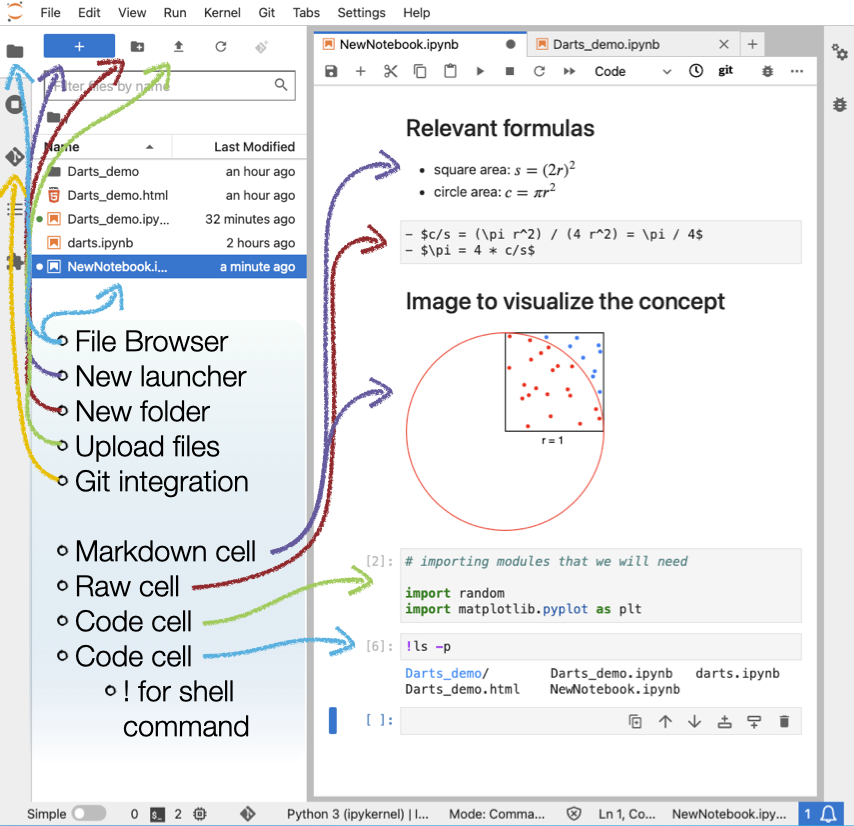
(© Copyright CodeRefinery team)
Markdown cells contain formatted text written in Markdown, a lightweight markup language for creating formatted text using a plain-text editor.
Raw cells contain raw text.
Code cells contain code to be interpreted by the kernel (e.g., Python, R, Julia, Octave/Matlab…). In this case, we are using Python kernel.
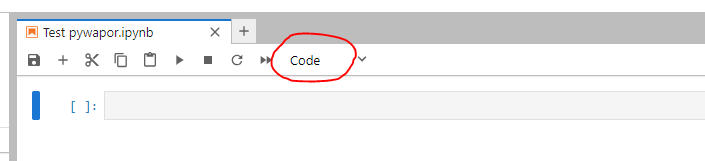
In the "Next" page, you will learn how to run pywapor for a test case in this new notebook.
3. Run PyWaPOR test case in Jupyter Notebook
In this step, you will create new code cells that run each step in pywapor. For the test case we selected the Wad Helal area, which you should be familiar with from the MOOC. In this exercise, the code to run this test case is written. You can copy the code of each step, paste into a new code cell and run.For each numbered item below, create a new code cell in JupyterLab (shortcut: B), copy the code to the cell and run it (shortcut: SHIFT + ENTER).
- Import pywapor package
- Set up project for the test case
project_folder = r"Test_case" #Path to folder
bb = [33.1479429498060583, 14.2657100971198449, 33.2874918465625242, 14.3487734799492763] # [xmin, ymin, xmax, ymax] #Wad_Helal
period = ["2023-03-01", "2023-03-02"]
# Set up a project.
project = pywapor.Project(project_folder, bb, period)
This code creates a new project folder for the test case, named "Test_case", defines the bounding box (minimum longitude, minimum latitude, maximum longitude, maximum latitude) of the test case (i.e., Wad Helal), defines the time period that model will run. For this test case, we will run the model for only 2 days as an example (i.e., the first two days of March 2023).
- Configure input dataset
- Set up account credentials to download data
- Download data
- Run rootzone soil moisture model
- Run etlook model
import pywapor
This code will import pywapor package to the current python kernel.
summary = {
            '_ENHANCE_': {"bt": ["pywapor.enhancers.dms.thermal_sharpener.sharpen"],},
            '_EXAMPLE_': 'SENTINEL2.S2MSI2A_R20m',
            '_WHITTAKER_': {'SENTINEL2.S2MSI2A_R20m':{'method':'linear'},
                            'VIIRSL1.VNP02IMG':{'method':'linear'},
				},
            'elevation': {'COPERNICUS.GLO30'},
            'meteorological': {'GEOS5.inst3_2d_asm_Nx'},
            'optical': {'SENTINEL2.S2MSI2A_R20m'},
            'precipitation': {'CHIRPS.P05'},
            'soil moisture': {'FILE:{folder}{sep}se_root_out*.nc'},
            'solar radiation': {'MERRA2.M2T1NXRAD.5.12.4'},
            'statics': {'STATICS.WaPOR3'},
            'thermal': {'VIIRSL1.VNP02IMG'},
            'chunks':{'time':1,'x':100,'y':100}
            }
project.load_configuration(summary = summary)
This code will configure the input datasets for this test project. All the information about sources of input datasets and methods to preprocess input data is defined by the variable 'summary'. There are also options to run pywapor with the default set of inputs used for WaPOR data products. In the class, you will learn more about different default and customized pywapor configurations and what each line in this code means.
project.set_passwords()
This code will prompts you to put in the user accounts and passwords that are required to download the configured input datasets. Use the user account and password that you created in the previous step: Create user accounts. For this test case, you will need to enter the username and password of NASA Earthdata account, and the email address and password of Copernicus account. Other accounts are used for when you want to run pywapor with other datasets.
datasets = project.download_data()
This code will start the process of downloading input data for pywapor. When python kernel is running the cell, make sure that you have internet connection. The amount of time for downloading data depends on the period and area and internet connection (and indication is that for the Wad Helal area it takes less than 30min to download 2 days of data).
Later, when you run pywapor for your own case study, the downloading step might take longer due to server or other interruptions not all data may have been downloaded. Check the log of the download section, if it indicates that if failed to download certain variables, re-run the step again (it will append data to the existing data).
se_root_in = project.run_pre_se_root()
se_root = project.run_se_root()
This code will run the se_root module to calculate root zone soil moisture, which the an input to calculate evapotranspiration.
et_look_in = project.run_pre_et_look()
et_look = project.run_et_look()
This code will run the et_look module to calculate evaporation, transpiration, interception, and net primary production.
At the end of this exercise, you should be able to create a Jupyter notebook like this example notebook , to run this notebook, and to get the output file of pywapor et_look_out.nc. Next, we will investigate this output file and discuss in the class.
4. Investigating pyWaPOR outputs
Once you finish running the pyWaPOR script, you now have a file called et_look_out.nc in the project folder.This is a so-called netCDF file that contains all the output files. NetCDF files have the advantage of compressing the data and for programmers easy to use. Save the output file somewhere else (it will be written over when you run pyWaPOR again. Open the file in QGIS by selecting adding layer "adding mesh file".
Investigate the results, on Tuesday we will be discussing the outputs, think about the following questions:
- What kind of output layers are included in the output file?
- Why does the data not cover the entire bounding box?
Bring any other questions or concerns with you to the class.