Tutorial Cartography for Map Figures in Academic Journals & Books
This workshop will discuss approaches and guidelines for creating map figures for academic books and journals. I will use QGIS to illustrate one workflow in a graphical GIS. This general workflow can be applied to other graphical GIS programs or even non-map figures.
This workshop was developed by Dr. Michele Tobias from UC Davis (GPL 3.0 license) and updated to QGIS 3.22 with some minor changes by Dr. Hans van der Kwast, published on GISopencourseware. The original workshop can be found here.
3. Hands On
3.10. Export Your Map
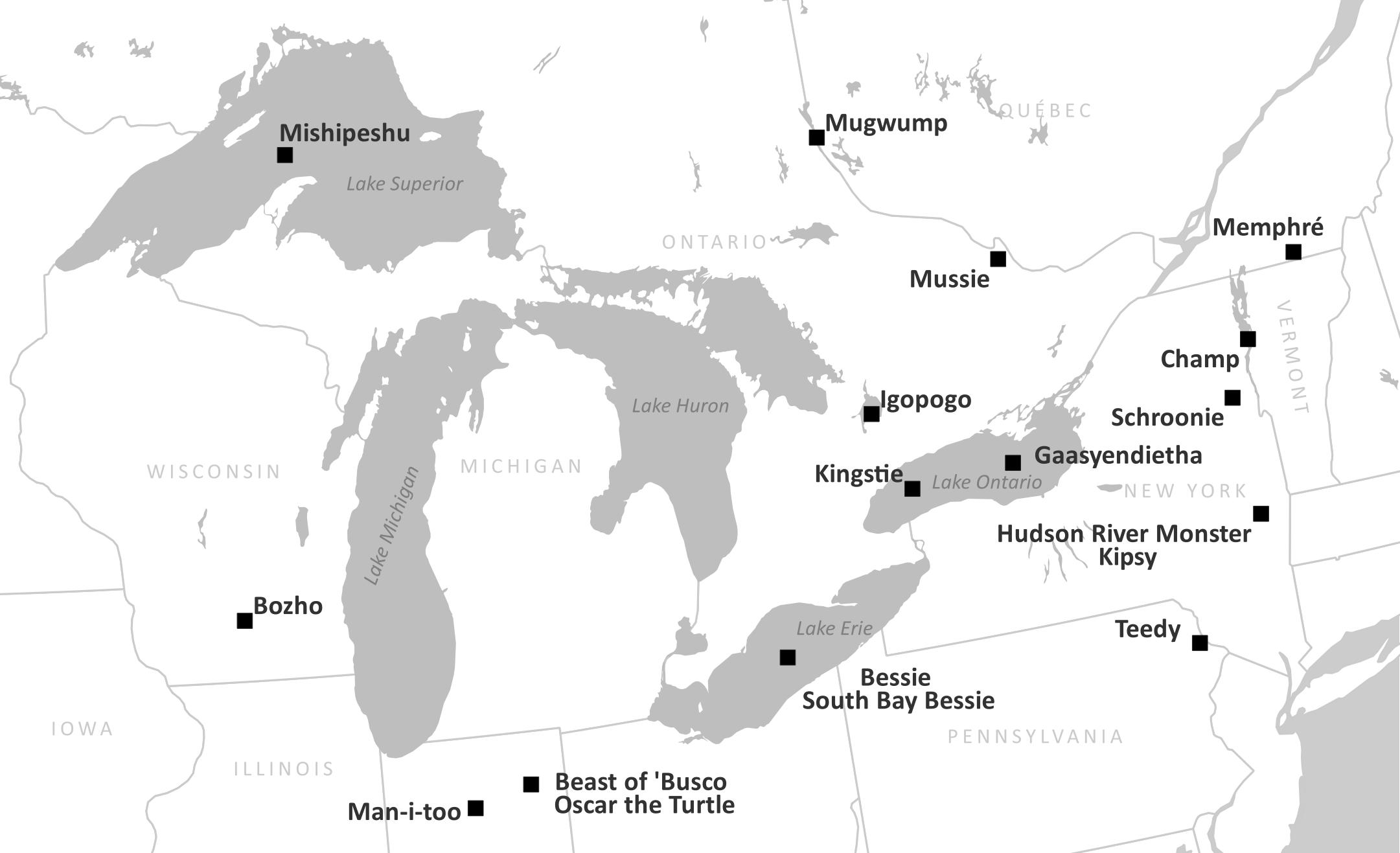
Finally, we're done with our map! (Ok, it's normal if you're now seeing a dozen things you would change, but you've got to submit that paper, so let them go!) Let's export it!
Exporting happens in the Print Layout.
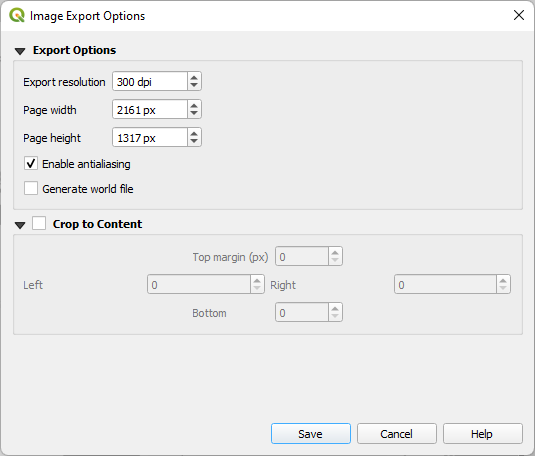
1. Click the Export as Image button, decide where to save your map and what file type you want. The journal asks for a .jpg file at a high enough resolution for the reviewers to review it in the first submission. Later, they'll want something of a higher resolution and probably a different format, but for now, let's pick .jpg. Give it a descriptive name so we know what it is when we put it in the paper. I'll call mine GreatLakeMonsters.jpg Once you click the Save button, a window will pop up asking for more parameters. 300 dpi is sufficient for the first submission. Leave the page height and width as they are - it adjusts automatically to match the dpi - and Save.